
We’ve all been there—frantically searching for a critical meeting recording minutes before a follow-up call. If you've ever felt that panic, you're not alone. The short answer is that today, new Microsoft Teams recordings are automatically saved to either OneDrive or SharePoint.
The real confusion stems from a major shift Microsoft made. They moved away from their classic Stream video service, and that change left a lot of people wondering where their files went.
Why Finding Teams Recordings Can Be So Tricky
The location of a Teams recording all comes down to one simple thing: the type of meeting you had. Was it a private call you scheduled with a few colleagues, or was it a formal meeting held inside a specific Team channel?
This distinction is the key. Private, one-on-one, or group chats have their recordings land in OneDrive, while meetings tied to a specific channel live in that channel's SharePoint folder.
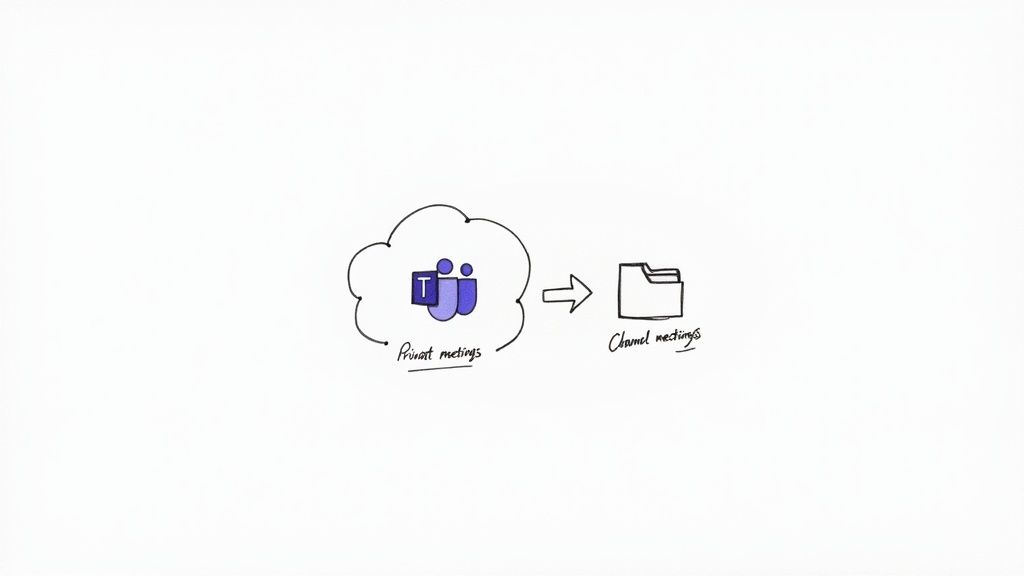
Here's a quick cheat sheet to make it clearer.
Teams Recording Storage At a Glance
Meeting Type | Primary Storage Location | Who Has Access by Default |
|---|---|---|
Private/Ad-hoc Meeting | The recorder's OneDrive account | Recorder and all internal invitees |
Channel Meeting | The channel's SharePoint site | All members of the Team channel |
"Classic" (Old Recordings) | Microsoft Stream (Classic) | Varies based on original permissions |
Knowing where to look is half the battle, but it doesn't solve the bigger problem of actually using the information locked inside those video files.
A Better Way to Handle Your Meeting Content
Hunting for a recording is just the first, frustrating step. Once you find it, you still have to sit through it, find the important moments, and figure out what to do next. That's a huge time sink.
This is where a dedicated tool like Notize AI completely changes the game. Instead of letting recordings get lost in the digital ether of OneDrive or SharePoint, Notize AI creates a centralized, intelligent hub for all your meeting content right from the start.
The real challenge isn't just finding the recording; it's extracting its value quickly. Manually sifting through an hour-long video for a single decision point is a major productivity drain.
With Notize AI, that post-meeting chaos disappears. As soon as your call ends, the platform gets to work, automatically generating everything your team needs.
A full, structured meeting summary so you can grasp the key outcomes in seconds.
Detailed notes with speaker-attributed segments to clarify who said what.
Action items and to-do lists to ensure accountability and drive projects forward.
Highlighted decisions and follow-up tasks to keep momentum going.
A searchable transcript allowing you to find specific topics across all past meetings.
By integrating a tool like Notize AI, you bypass the fragmented storage system entirely. All your critical meeting information—from the raw video to the final action plan—lives in one easy-to-access place. It stops being about "how to find my Teams recording" and starts being about putting that meeting's insights to work immediately.
Finding Recordings on Your Desktop and Web Browser
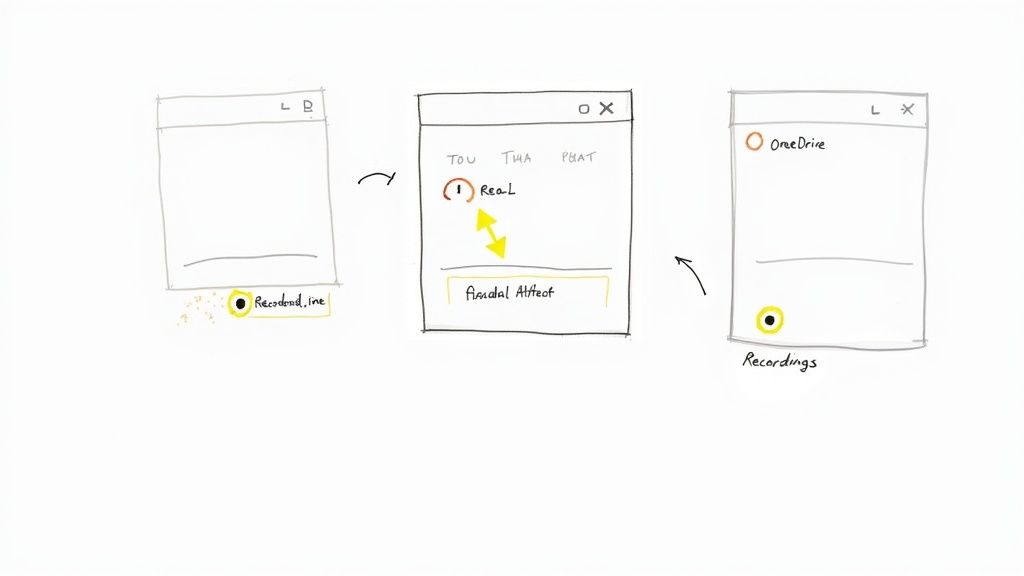
When you need to find a Teams recording on your computer, the fastest route is usually the most obvious one. Your first stop should always be the meeting chat history. Almost immediately after a meeting ends, Teams posts a link to the recording right there in the chat.
This is super convenient for grabbing a recent recording, but it’s not the only place to look. If the meeting was a scheduled calendar event, you'll also find the recording link attached to the event details. It's another quick way to get your hands on the file.
Go Directly to the Source
If you’d rather skip digging through chats and calendar invites, you can head straight to where the video file is actually stored. This is a great approach if you’re trying to find several recordings at once or just want to get your files organized.
Here's how Microsoft sorts them:
For private and group meetings: The video file automatically lands in a folder named "Recordings" inside the personal OneDrive of whoever hit the record button.
For channel meetings: The recording is stored in the channel’s "Files" tab, inside a "Recordings" folder. This is all part of the team's shared SharePoint site.
This split-storage system can get a little messy. For instance, if different people on your team record different meetings, those files end up scattered across their individual OneDrive accounts. This makes creating a single, central library of all team meetings a real headache. This is a very different system compared to other platforms; you can learn more about another way of handling it in our guide on how to record a Zoom meeting, which has a more centralized approach.
A Smarter, Centralized Workflow
Finding the recording is only half the battle. After that, you still have to watch it, pick out the important bits, and figure out what the next steps are. This is where the built-in methods create a lot of extra administrative work.
This is exactly where a tool like Notize AI can change your entire workflow. Instead of recording in Teams and then going on a hunt for the file, you can manage the entire process right from Notize AI.
The goal isn't just to find the video file; it's to instantly access the valuable information trapped inside it. A centralized system turns post-meeting admin from a chore into an automated, valuable process.
Using Notize AI means you can forget about the fragmented storage problem entirely. The moment your meeting is over, there's no need to go digging through OneDrive or SharePoint. The platform gives you immediate access to the recording and a whole suite of AI-powered assets:
A well-structured meeting summary.
Clear action items and to-do lists.
A fully searchable transcript with high accuracy.
A timeline of important moments for quick review.
This completely transforms your post-meeting routine. You’re no longer spending time just trying to locate a file. Instead, with Notize AI, you get a clear, organized summary of what was discussed, ready to share with your team right away. Notize AI makes the manual hunt for recordings a thing of the past.
Finding Recordings on Your Phone
Let's face it, work isn't confined to a desk anymore. You often need to catch up on a missed meeting while you're commuting or between appointments. Luckily, finding a Teams recording on your phone is just as easy as it is on your computer.
The Teams mobile app, for both iOS and Android, keeps things simple. The quickest way to find a recording is usually right in the meeting's chat thread. Just pop open the app, tap over to the 'Chat' tab, and scroll to the meeting in question. The recording link will be sitting there in the conversation history, ready to play.
Using Your Mobile Calendar to Find Recordings
If you're in back-to-back meetings, that chat thread can get buried fast. When that happens, your calendar is your best bet. I find this method super reliable for tracking down recordings from a day or two ago.
It's a pretty straightforward process:
Open the Teams app and tap the 'Calendar' icon.
Find the date of the meeting and tap on the event itself.
You'll see all the meeting details, and the recording link will be right there, usually under the chat or details section.
The mobile app basically mirrors the desktop layout, just optimized for a smaller screen. These two methods are really all you need to find any recording on the go.
The real problem on mobile isn't just finding the recording. It's trying to skim through a 60-minute video on a tiny screen to find the one key takeaway you need. That's just not practical.
A Smarter Way to Work with Recordings on Mobile
Okay, so you've found the video file. Now what? Watching it is one thing, but actually using that information is a whole different challenge. This is exactly why a tool like Notize AI is so valuable, especially with its mobile-first approach. It’s not just about giving you a link to a video; it’s about giving you the meeting’s outcome in a format you can actually use.
With Notize AI, you can pull up the important outputs from your meeting right on your phone. It completely changes how you handle follow-ups, turning a tedious task into something you can knock out in a couple of minutes from anywhere.
Think about finishing a big client call. Before you're even back at your desk, you could:
Pull up a complete, AI-generated summary of the entire conversation.
Quickly scan the key discussion points and decisions made.
Copy and paste a clean list of action items to your team in Slack.
This kind of workflow makes your phone a genuine productivity tool, not just a smaller screen for watching videos. Notize AI helps you capture, understand, and act on meeting information instantly, keeping the momentum going without being chained to your laptop.
Understanding Permissions and Sharing Recordings
Finding your meeting recording is half the battle. The other half? Knowing who can actually watch it. Microsoft Teams handles permissions very differently depending on the type of meeting you recorded, and getting this wrong can be a real headache for collaboration and security.
It all boils down to where the recording file lives: your personal OneDrive or the team's shared SharePoint site.
When you record a standard meeting or a group chat, that video file lands directly in a "Recordings" folder inside your personal OneDrive. This is the default for most non-channel meetings. Out of the box, access is limited to you (the person who hit record) and every internal person invited to the meeting. It's treated just like any other personal file you've chosen to share with a specific group.
Channel meetings are a different story. Since they happen within a specific team channel, the recording is saved to that team's shared SharePoint library. This makes it a communal asset. Access is automatically given to every single member of that Team channel.
Where Does My Recording Live?
The core distinction is private vs. public (within the team). A OneDrive recording is fundamentally private-by-default, whereas a SharePoint recording is team-access-by-default. It's easy to see how you could accidentally overshare a sensitive one-on-one by recording it in a channel or, on the flip side, make it impossible for your team to find a critical project update by recording it as a private meeting.
This handy diagram shows the two main places you'll look for recordings right inside the Teams app itself, whether you're on desktop or mobile.
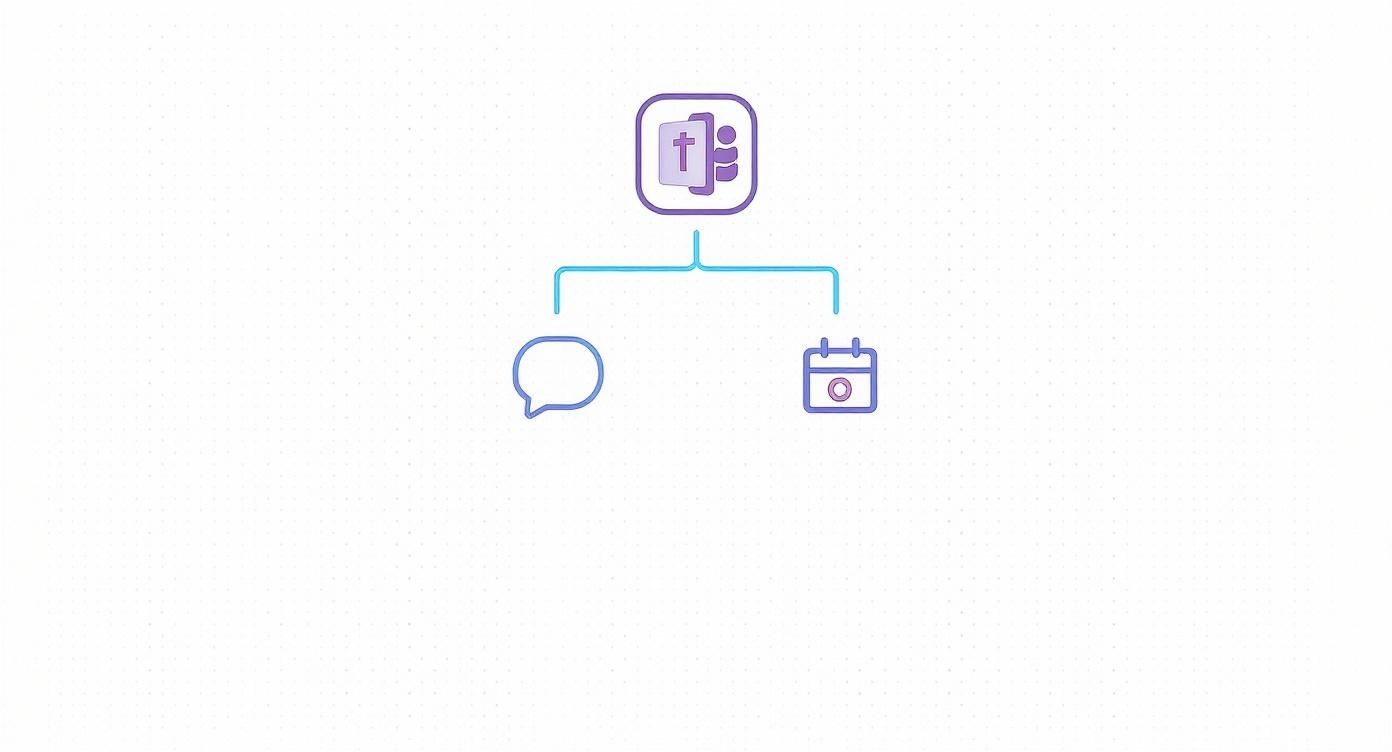
As you can see, you can always get back to your meeting content through the original Chat thread or the event on your Calendar. Both paths lead to the same place.
OneDrive vs SharePoint for Teams Recordings
Here’s a quick breakdown of how these two storage locations compare when it comes to your meeting recordings.
Feature | OneDrive (Private & Group Meetings) | SharePoint (Channel Meetings) |
|---|---|---|
Storage Location | Your personal OneDrive "Recordings" folder. | The team's SharePoint site, in the channel's folder. |
Default Access | The meeting recorder and internal invitees. | All members of the specific Team channel. |
Ownership | Owned by the individual who started the recording. | Owned by the Microsoft 365 Group for the team. |
Sharing Method | Share like any file, via a direct link. | Add people to the channel or share from SharePoint. |
Best For | One-on-one calls, small group discussions, sensitive meetings. | Project stand-ups, department updates, team-wide training. |
Understanding this distinction is key to keeping your recordings secure and making sure the right people can find them later without any fuss.
How to Adjust Permissions and Share Your Recordings
So, what if you need to share a recording with someone who wasn't in the meeting? Luckily, you manage these just like any other file in your Microsoft 365 world.
Sharing from OneDrive: The easiest way is to find the file in your "Recordings" folder. From there, just click the "Share" button and type in the names or email addresses of the people you want to share it with. You can give them view-only access or full permission to edit and download.
Sharing from SharePoint: Because access is tied to the channel, the simplest method is to just add the person to the Team channel itself. If you need more specific control (like sharing with someone outside the team), you’ll have to go into the SharePoint site directly to manage the file's permissions, which can get tricky.
The real problem starts when you have dozens of these recordings. Trying to manage all those individual links and permissions across scattered OneDrive and SharePoint folders creates a massive administrative bottleneck. It just doesn't scale.
This is where a dedicated tool like Notize AI completely changes the game. Instead of you having to hunt down files and manually manage sharing permissions, Notize AI centralizes everything. You can group related meetings into projects or teams right inside the app.
From there, you can instantly share the AI-powered summaries, transcripts, and action item lists with anyone you need to. This gets the crucial information to the right people immediately, without you ever having to worry about broken OneDrive links or complicated SharePoint settings again. Notize AI makes sharing simple, fast, and secure.
Troubleshooting When Your Teams Recording is Missing
It’s a heart-stopping moment: you wrap up a crucial meeting, go to pull the recording, and... it’s just not there. Before you start to panic, let's walk through the usual suspects. More often than not, the reason your Teams recording has gone missing is surprisingly simple.
The most common culprit is also the most human—someone simply forgot to hit the Start recording button. In the rush of getting a meeting underway, it’s an easy detail to miss. Make it a habit to look for that little red recording icon at the start of any important call.
Storage space is another frequent offender. If the person who initiated the recording has a full OneDrive account (for a private chat meeting) or the team’s SharePoint site is maxed out (for a channel meeting), the recording just won't save. The real problem is that Microsoft doesn’t always send a clear notification that the recording failed, so you only find out when it's too late.
Check Your Organization's Expiration Policies
Don't forget about automated clean-up rules. Many companies set up policies to automatically delete recordings after a set period—say, 60 or 90 days—to keep storage costs down. If you're hunting for a recording from a few months ago, it might have been permanently deleted by one of these IT policies.
You can usually spot the expiration date right next to the recording file in OneDrive or SharePoint. If you see it's getting close, you have the option to extend the date or, even better, download a local copy to keep it forever.
The real issue here is that the standard Teams recording process is fragile. It has several points of failure, from simple human error to rigid IT rules. When a recording is absolutely essential, you can't afford to leave its capture to chance.
A Reliable Safety Net for Your Recordings
Instead of retroactively troubleshooting a missing file, a much better approach is to build a more reliable workflow from the get-go. This is where a dedicated tool like Notize AI can be your safety net. By running your recordings through the Notize AI platform, you sidestep many of Microsoft’s built-in weak points.
Because Notize AI manages the recording, processing, and storage on its own, you’re no longer at the mercy of individual OneDrive quotas or SharePoint expiration policies. Every meeting is captured and tucked away safely in a single, centralized hub—every single time.
It’s a proactive solution that guarantees your important conversations are never lost. Plus, once the recording is saved in Notize AI, you can use its integrated AI meeting note taker to pull out instant summaries and action items, turning what could have been a disaster into a productive asset.
Common Questions About Finding Teams Recordings
Navigating where Microsoft Teams tucks away your recordings can feel like a bit of a maze. To help you find what you’re looking for, I've put together some quick, straightforward answers to the questions I hear all the time.
How Long Until a Teams Recording Is Ready to View?
It's a waiting game, but usually not a long one. A Teams recording is typically available within a few minutes, though it can sometimes take up to an hour for longer meetings. The final processing time really depends on the recording's length and how busy the Microsoft servers are at that moment.
The good news is you don't have to keep checking. Teams will drop a notification right into the meeting chat the second it's ready to watch.
But sometimes, "soon" isn't soon enough. When your team needs to act on information immediately, that processing delay can be a real bottleneck. This is where a tool like Notize AI makes a huge difference. It can process the audio as the meeting happens, so you get summaries, transcripts, and key insights almost instantly after you hang up. No more waiting around. And if you want to get better at turning that raw audio into clean text, our guide on how to transcribe audio to text has some great tips.
Who Can Actually Start or Stop a Meeting Recording?
As a general rule, the meeting organizer and anyone from the same organization can start or stop a recording. That said, your company's IT administrator can lock this down, restricting recording permissions to only the organizer and any designated co-organizers. It's a common way for businesses to maintain tighter control over what gets recorded.
Crucially, external guests and attendees from outside your organization cannot start or stop a recording. This is a built-in security measure to ensure control always stays with the host organization.
Why Can't I Find Recordings in Microsoft Stream Anymore?
Ah, the great migration. This is a common source of confusion, and for a good reason. Microsoft has officially replaced Microsoft Stream (Classic) with OneDrive and SharePoint as the new default storage spots for all meeting recordings. The goal was to better integrate video into the same file system you use for everything else in Microsoft 365.
If you’re digging for a recording from way back (think before mid-2021), it might still be living in your old Stream portal. But for anything recent, it’s going to land in either your OneDrive (for private meetings) or a SharePoint site (for channel meetings).
What's the Best Way to Search Across All My Recordings?
Let's be honest, trying to find a specific comment by sifting through dozens of video files in different OneDrive folders and SharePoint sites is a nightmare. The native search in Teams is okay, but it doesn't actually scan the spoken content inside the videos.
This is where you need a smarter approach. Using a centralized hub like Notize AI is the most effective method I've found. It lets you run a powerful keyword search across the full transcripts of all your recorded meetings. You can instantly find the exact moment a specific project, client, or decision was mentioned and jump right to that point in the video. Notize AI essentially turns a scattered collection of video files into a single, searchable knowledge base for your whole team.
Ready to stop hunting for recordings and start using their insights? Notize AI centralizes your meetings, providing instant summaries, searchable transcripts, and clear action items. Get organized and reclaim your time. Try Notize AI today!
How to Find Teams Recording Files Quickly